I ran into a strange problem while browsing on my iPhone today: images on a webpage would not load.
I checked the network connection and DNS, then tested a download. Everything appeared to be working, but the images still refused to display.
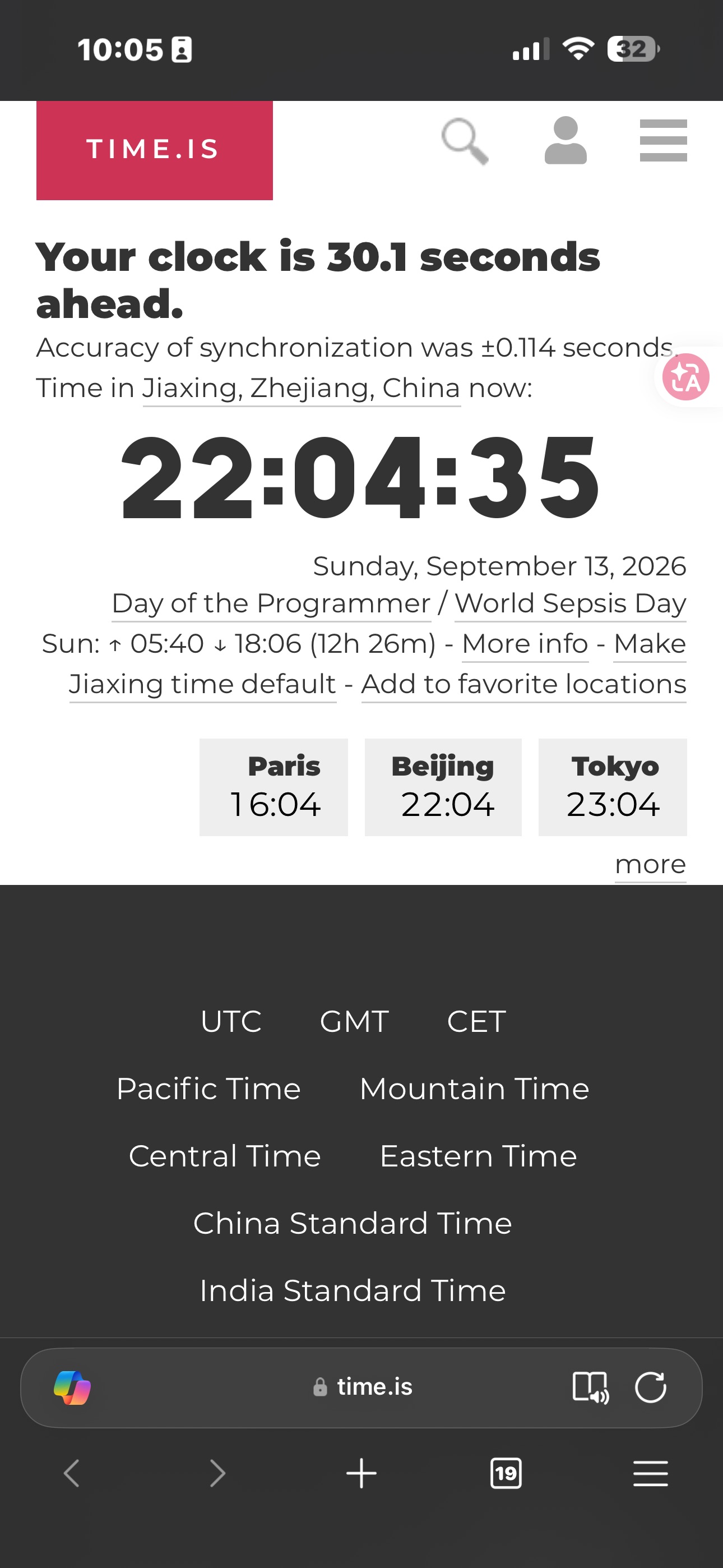
I eventually opened time.is and found the clue: my iPhone clock was 30.1 seconds ahead.
Why can an incorrect clock break image loading?
Your phone’s clock does more than display the time. Sign-in tokens, cookies, certificates, and time-limited signed links for images or files may all depend on checks for when something becomes valid or expires.
Some images do not use permanent public URLs. A website, CDN, or object-storage service may issue a link that works for only a short period. If the device clock is fast, client-side code in the website or app may decide that a token or URL has already expired. A timestamped request can also fall outside a service’s accepted time window. The network and DNS can still work normally while the image request itself is rejected, making it look as though only the images are broken.
This is a documented failure mode. AWS explains that S3 checks a signed URL’s expiration time when it receives a request and warns that even small clock differences can invalidate signatures. AWS: Download and upload objects with presigned URLs
I did not save the failed image request’s error code, so I cannot identify the exact validation layer that failed in this case. What I could verify was simple: the iPhone clock was 30.1 seconds fast, and the images began loading immediately after I synchronized it.
The images returned after I enabled automatic time
I opened Settings → General → Date & Time and enabled Set Automatically, allowing iOS to refresh the date, time, and time zone.
The time zone changed from Singapore to Beijing. When I checked time.is again, the difference had fallen to -0.007 seconds, and the missing images displayed normally.
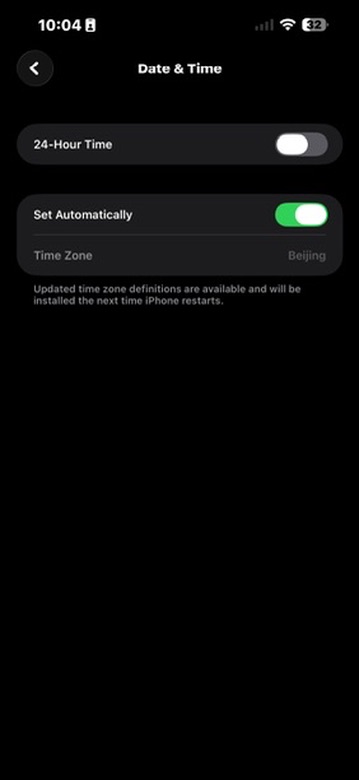
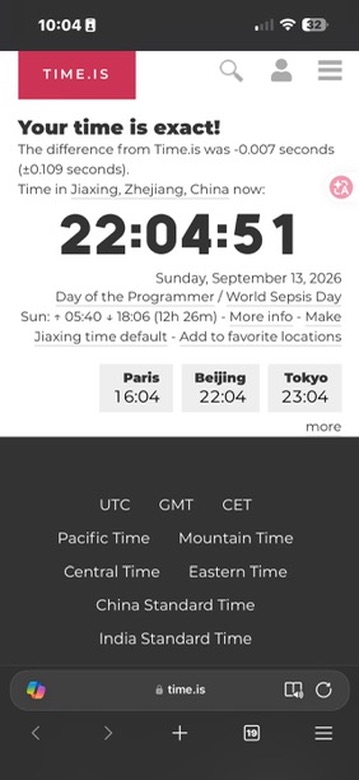
Apple places these controls under Settings → General → Date & Time and explains that iPhone can set its time zone automatically. Apple: Change the date and time on iPhone
The same time zone does not mean the clock is synchronized
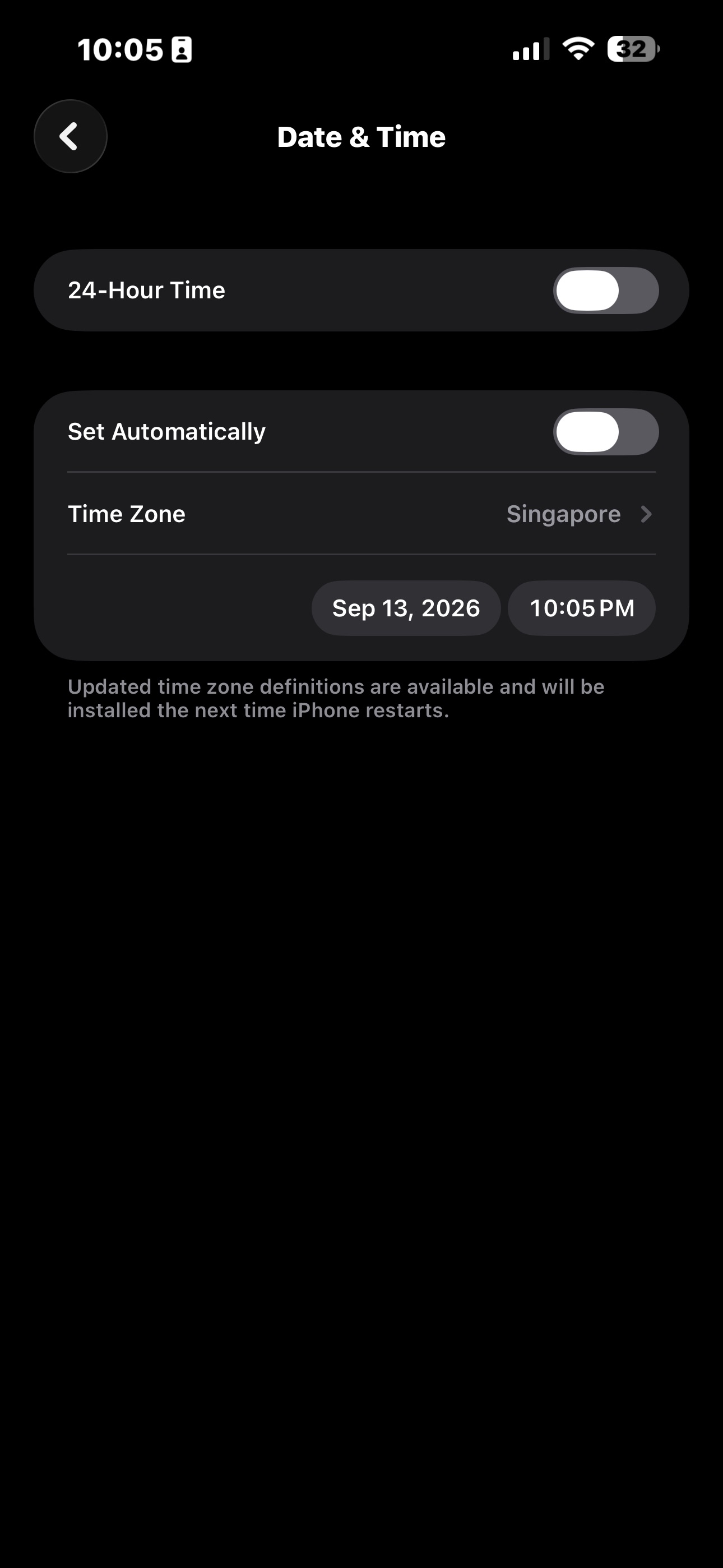
Some software checks the device’s time zone, so you may occasionally change an iPhone to Singapore or Taipei before using it. Mainland China, Singapore, and Taipei currently use UTC+8, so the displayed hour and minute usually look unchanged after switching between them.
Time zone and time synchronization are separate settings:
- Time zone determines how a moment is displayed locally.
- Time synchronization determines whether the phone’s clock matches standard time down to the seconds.
Choosing Singapore or Taipei does not directly make an iPhone run 30 seconds fast. The easy-to-miss part is that changing the time zone may involve turning off Set Automatically. If it stays off, the phone no longer keeps correcting the manually set clock, so it can drift even though the selected time zone is still UTC+8.
Three checks to try next time
- Open time.is and check whether the phone clock has a noticeable offset.
- Go to Settings → General → Date & Time and enable Set Automatically.
- Return to the app or webpage, reload it, and see whether the images and other resources return.
If the problem remains, continue checking the connection, DNS, proxy, VPN, cache, and the service’s own status.
The next time your network appears healthy but images will not load, remember to check the iPhone clock. Sometimes the fault is hiding in a few seconds that you would never notice by glancing at the status bar.